






Step 1: Generate an Auth Key
Login to SiteTran
If you already have an account with SiteTran: sign in.
If not: sign up first.
Generate the Auth Key
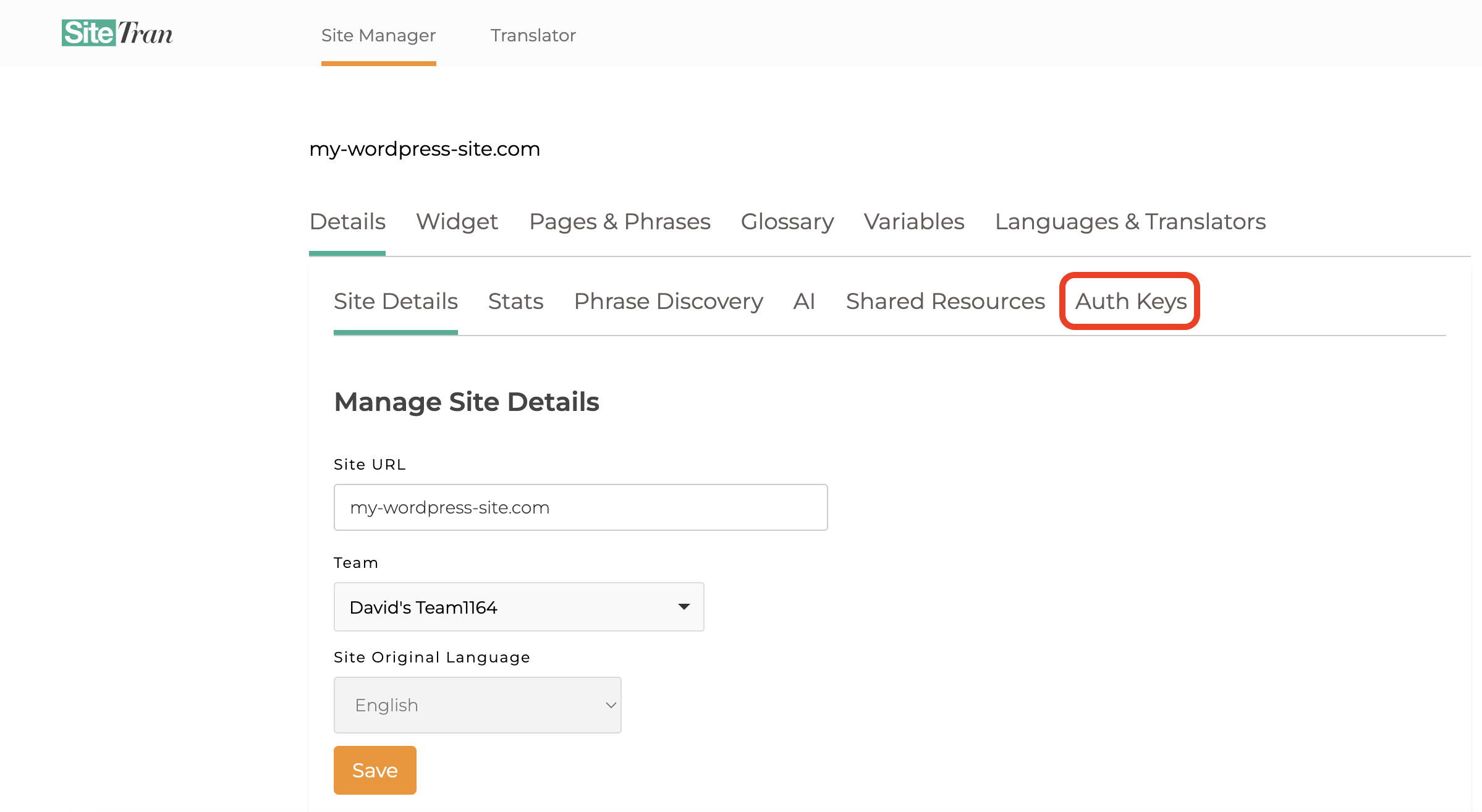
In your SiteTran account, navigate to the Site Manager interface and open the Auth Keys page (authentication key settings), which is found in Details ➞ Auth Keys.
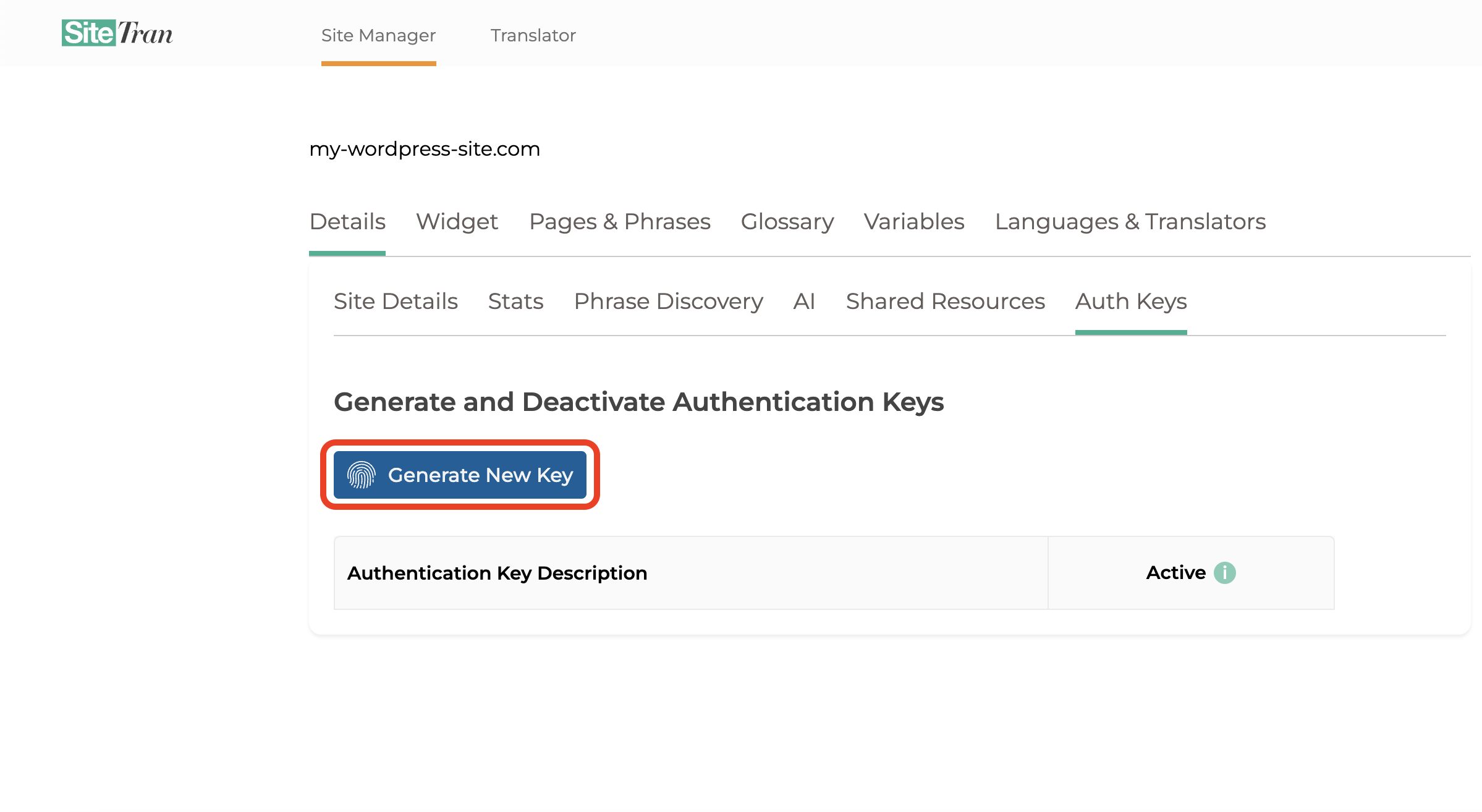
Click the "Generate New Key" button.
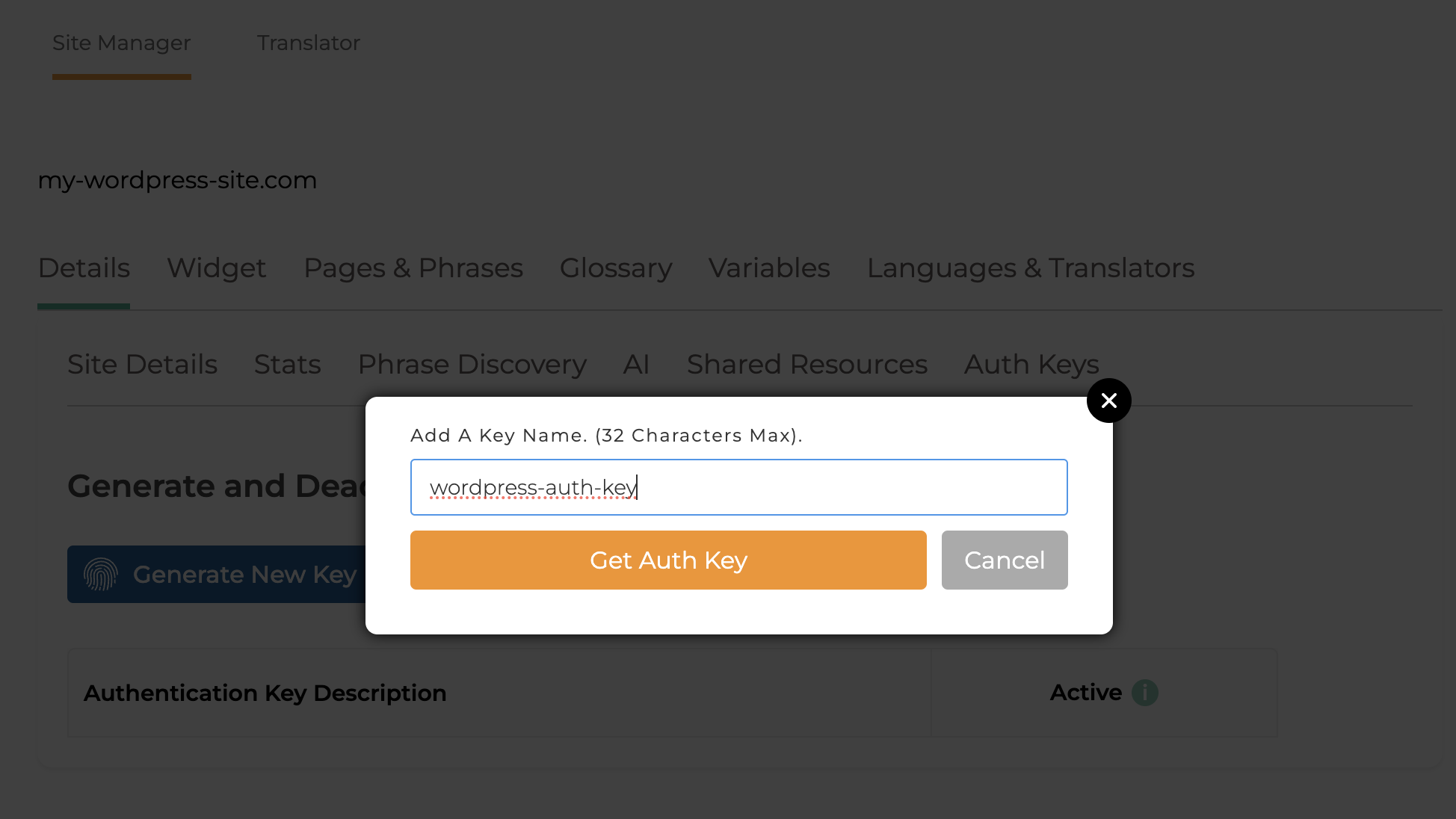
Give the new authentication key any name that reminds you what it's for, and click "Get Auth Key".
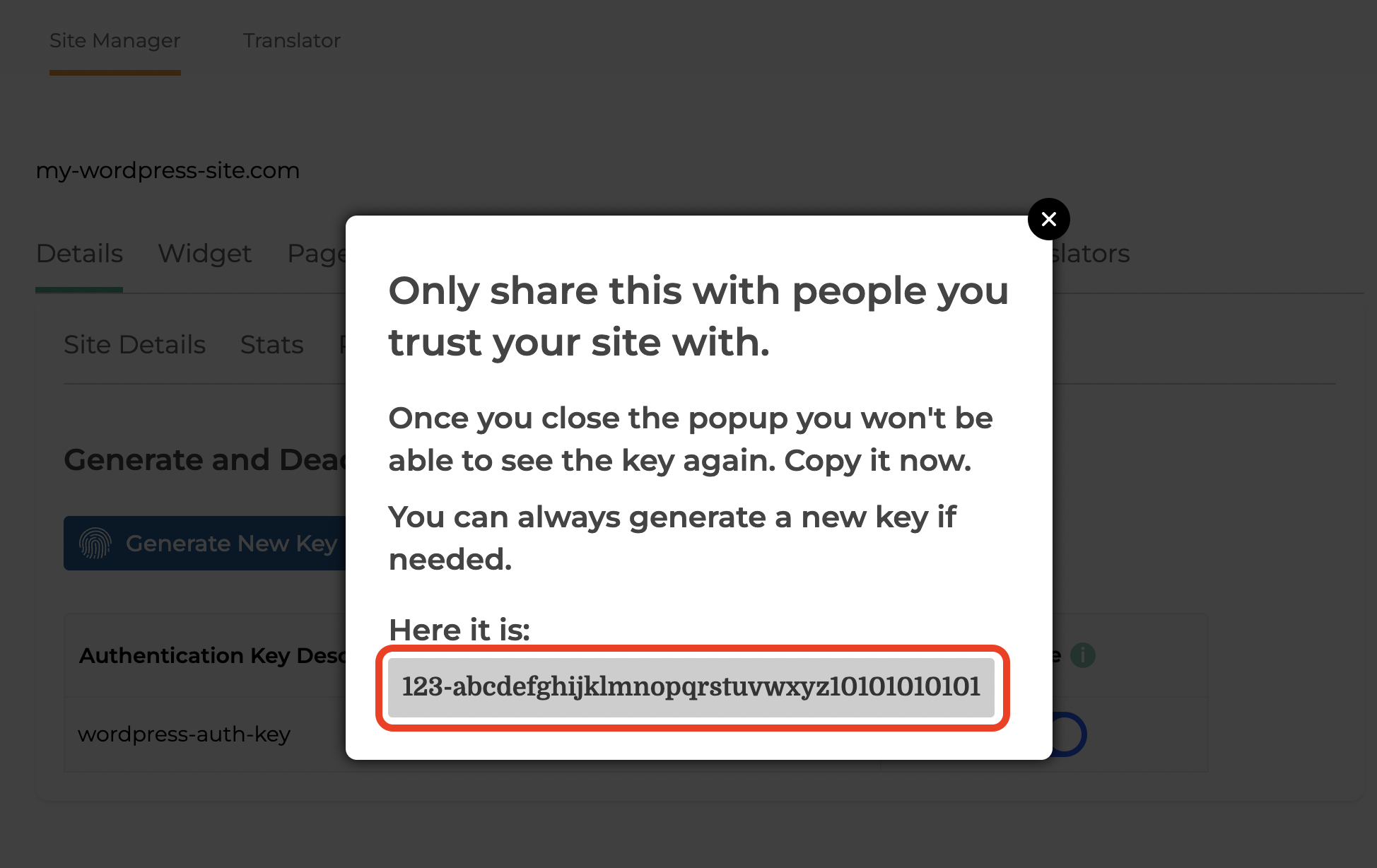
Copy the Key
Once your key is generated, copy it. Don't share it with anybody! This key is like your secret password. It's essential for linking SiteTran with your WordPress Site.
Step 2: Paste Auth Key in Plugin Admin
Back in WordPress, open your SiteTran Plugin, and paste your auth key in.
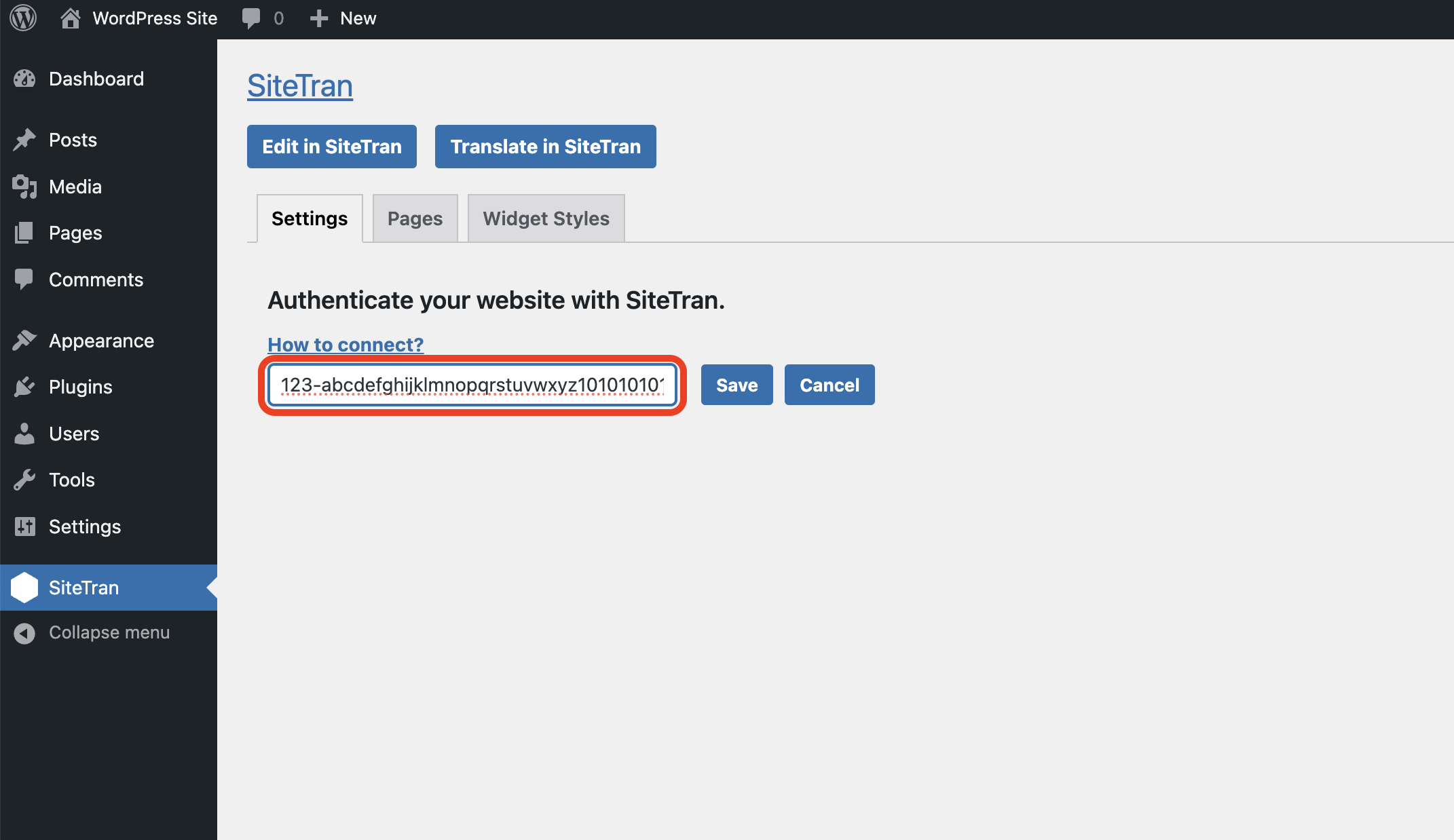
Click "Save" and that's it! SiteTran is now integrated with your WordPress site, and you're ready to translate.