










Overview of Squarespace + SiteTran Integration
This guide offers a straightforward, step-by-step approach to making your Squarespace website multilingual in just a few minutes. Anyone can follow along successfully, no technical background needed.
Expanding your online business's reach to a global audience has never been easier for Squarespace users thanks to SiteTran. Whether you're looking to attract new customers from different backgrounds or enhance the user experience for your current international clientele, this guide will walk you through the entire process.
Let's dive into the world of website translation and unlock new possibilities for your Squarespace site, with SiteTran!
Want the overview first? Squarespace Translator: Make Your Squarespace Site Multilingual explains what SiteTran translates on Squarespace, which plans include Code Injection, and how SEO works.
Prerequisites:
A Squarespace website that you want to translate, on a Core, Plus or Advanced plan (or a legacy Business or Commerce plan). These plans include Code Injection.
A SiteTran site that you will integrate with Squarespace. If you haven’t already, sign up for SiteTran and create a (free) SiteTran site.
Time needed:
Estimated time needed: 3 minutes.
Let’s get started.
Get your Widget Code
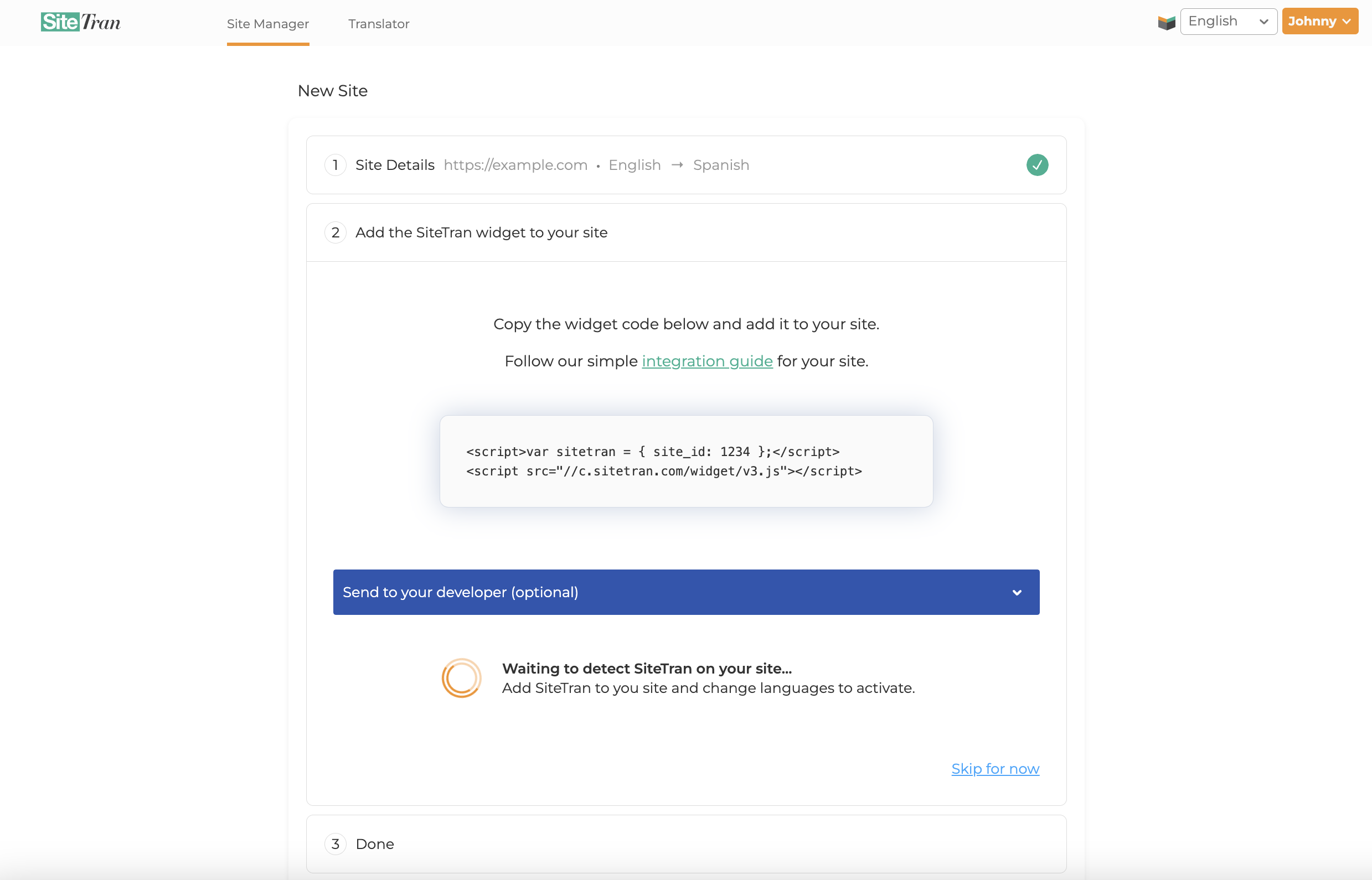
First, retrieve your widget code from SiteTran. If you haven’t already signed up for SiteTran, it only takes 30 seconds. After creating your account, create a new site in SiteTran to get your widget code, which will generate the language dropdown on your Squarespace site.
Copy the Widget Code
Click the "Copy" button to get your widget code. You will use this in a bit.
Your Widget Code is available when creating your SiteTran site. If you skipped this step you can also retrieve it from the Dropdown Style page.
Integrating with Squarespace
Initial Login and Navigation
In a new tab, log in to your Squarespace website
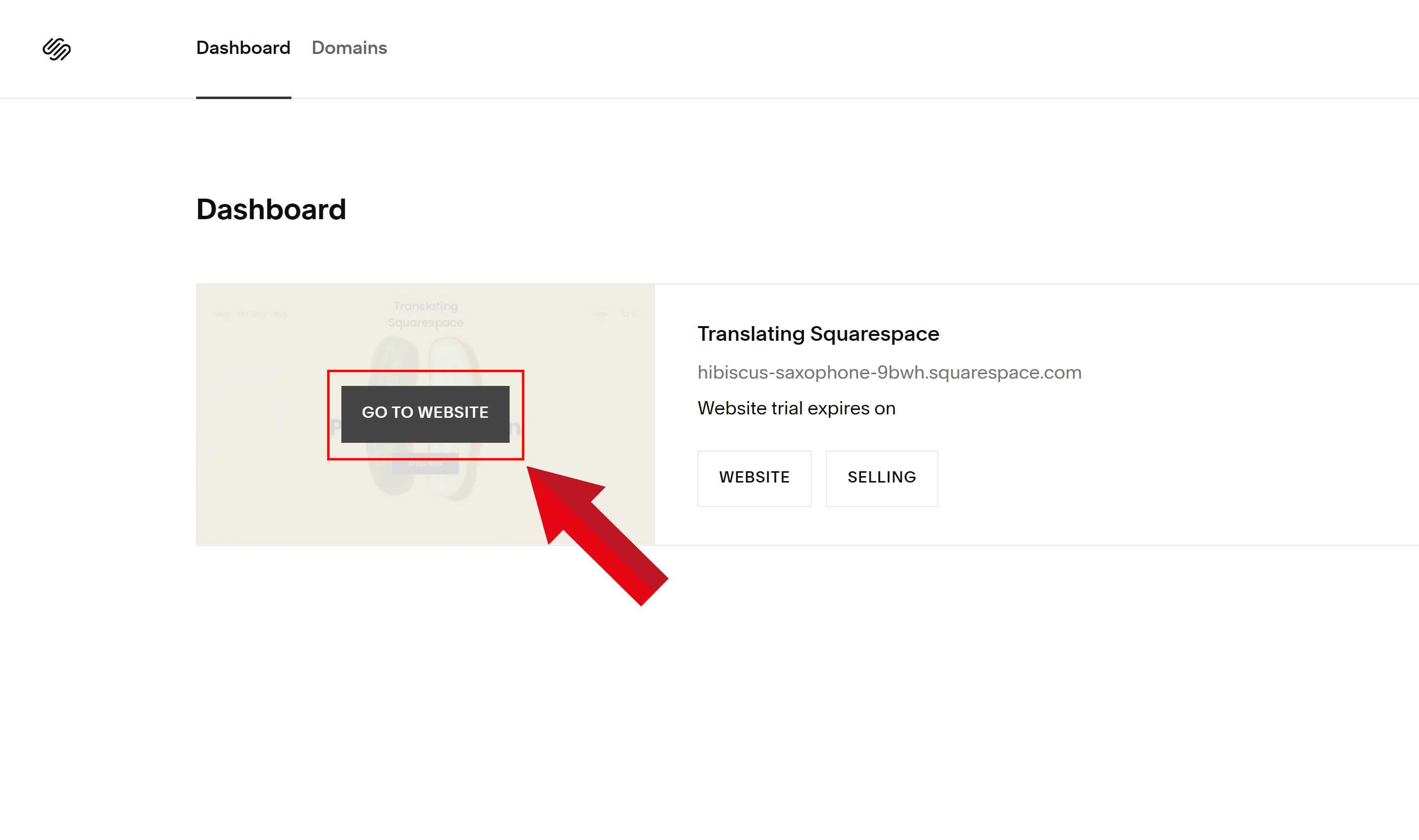
Go to your Squarespace Website
Navigate to the website where you want to integrate the SiteTran widget.
Access Squarespace Admin Dashboard
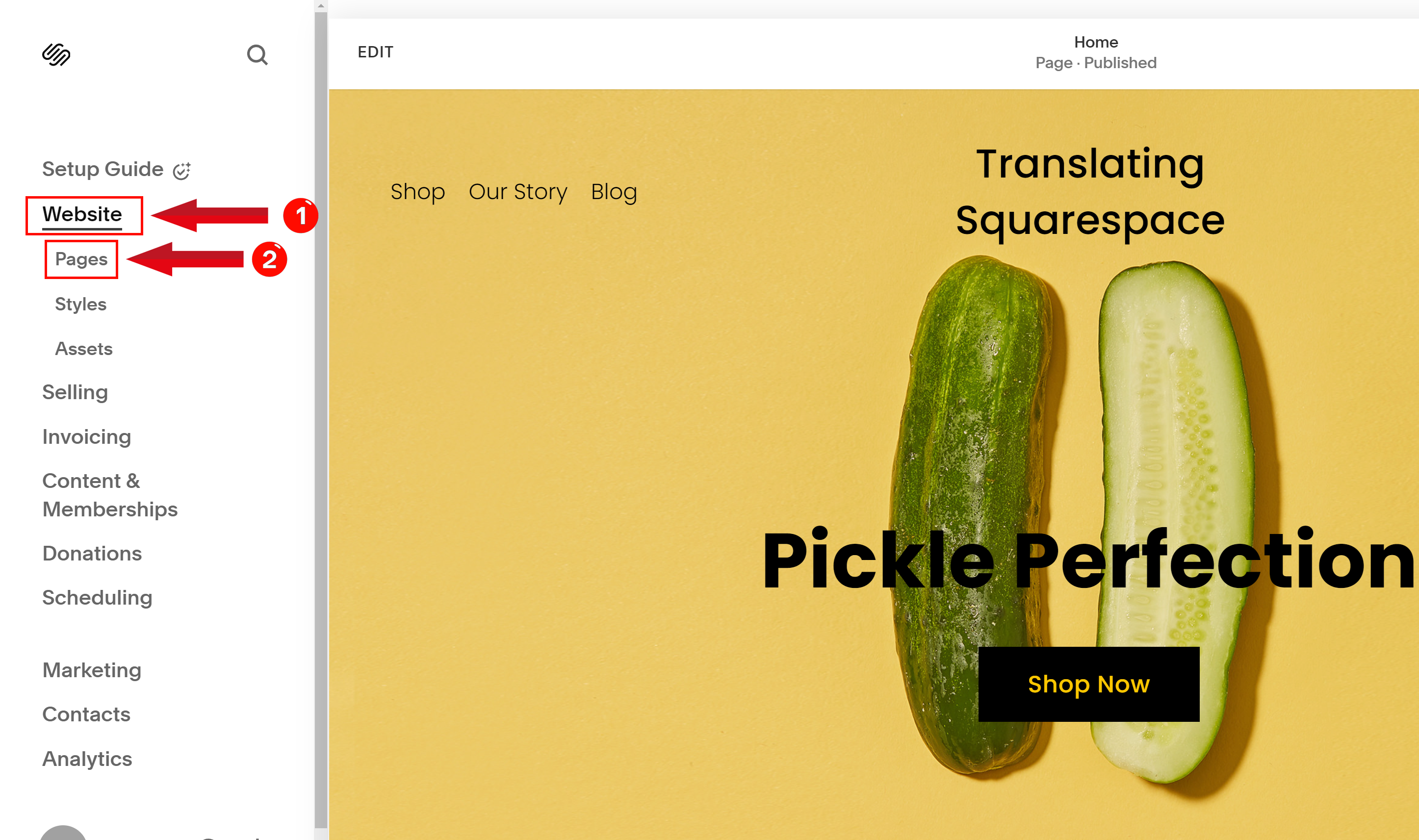
In your Squarespace dashboard, click on the "Website" option in the side menu. This will expand to reveal additional options. Next, choose "Pages".
Find Custom Code
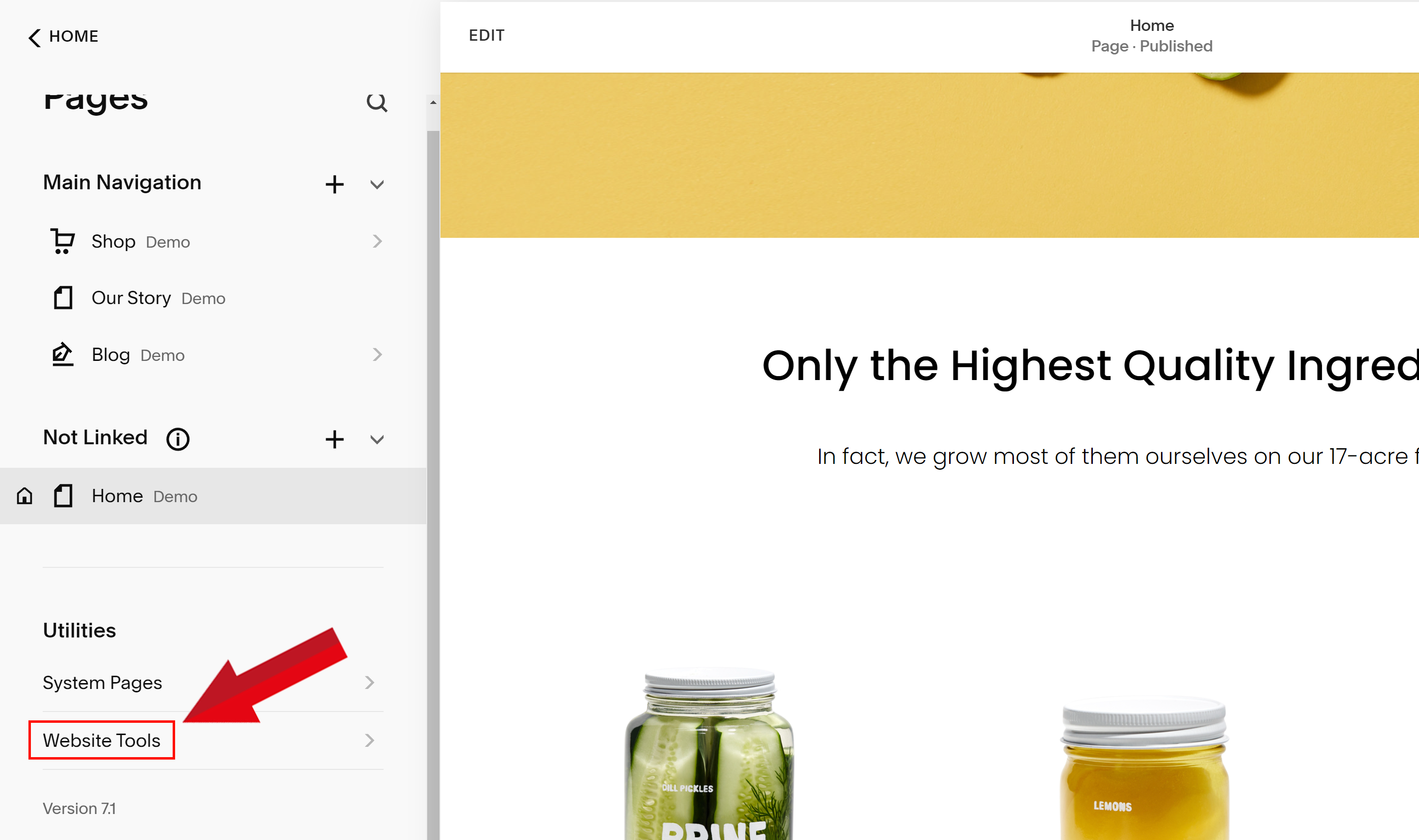
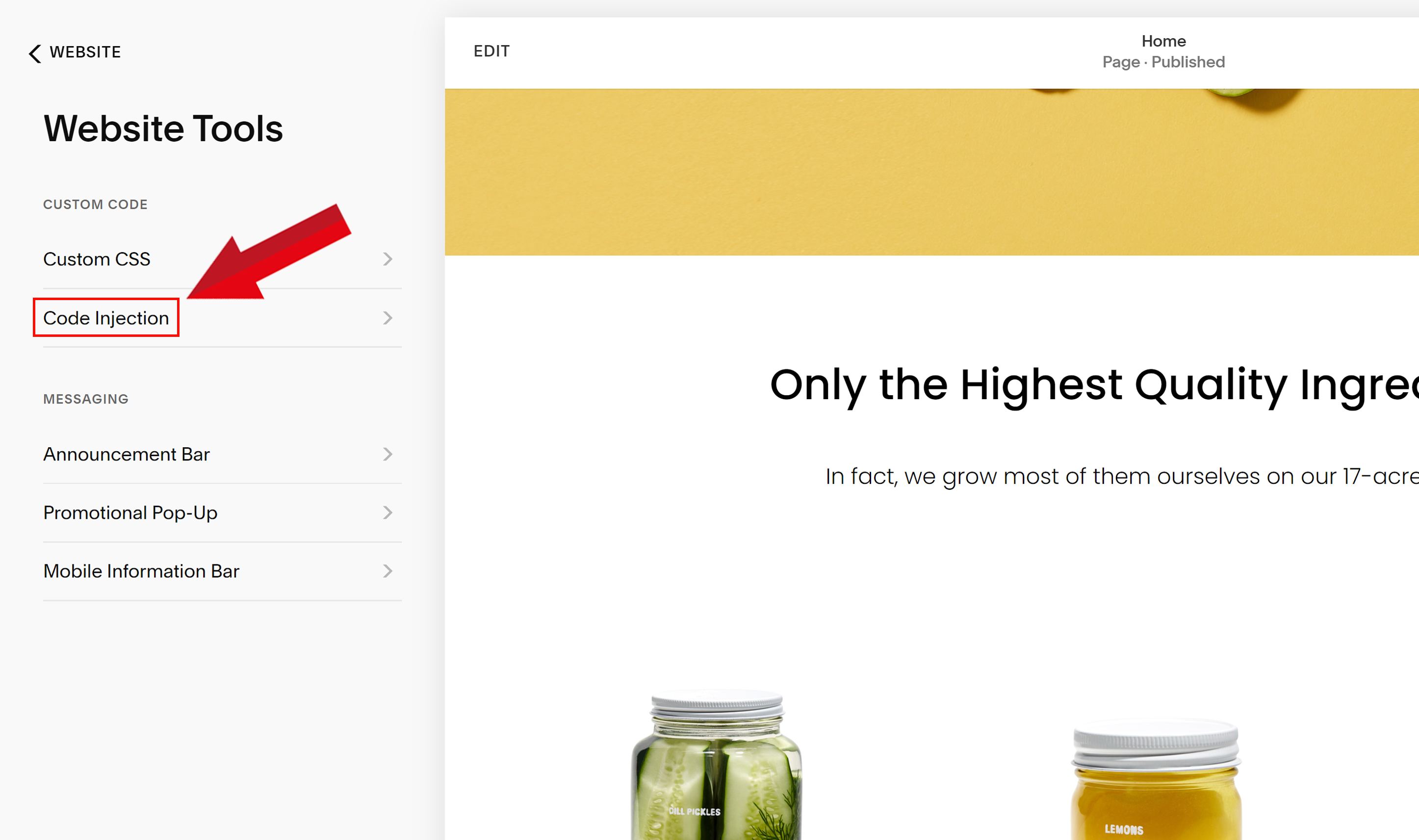
Still in the Pages panel, scroll to the bottom and open "Custom Code". On some dashboards this is called "Website Tools", under "Utilities".
Access Code Injection
Click on "Code Injection".
Paste SiteTran Widget Code
In the Code Injection section, scroll to the Footer field. The Footer field adds the code to the end of every page, which is where the language dropdown's div belongs.
Paste the SiteTran Widget Code that you copied earlier
Your widget code looks like this:
<script>var sitetran = { site_id: your_site_id };</script>
<script src="//c.sitetran.com/widget/v3.js"></script>
<div id="sitetran_translate_element"></div>
Paste all three lines. The div is where the language dropdown appears.
If you need help finding your code snippet, check out this article.
After pasting the code, click on the Save button at the top left to apply the changes
Squarespace doesn't run custom code in the editor preview, so check the dropdown on your live site in a private window. To pin the dropdown to a corner of every page, choose Fixed on window on the Dropdown Style page.
Verifying & Translating
Testing the Integration
Visit your Squarespace site in a private window and find the SiteTran language dropdown. Choose your new language from the dropdown, and SiteTran will begin discovering your phrases.
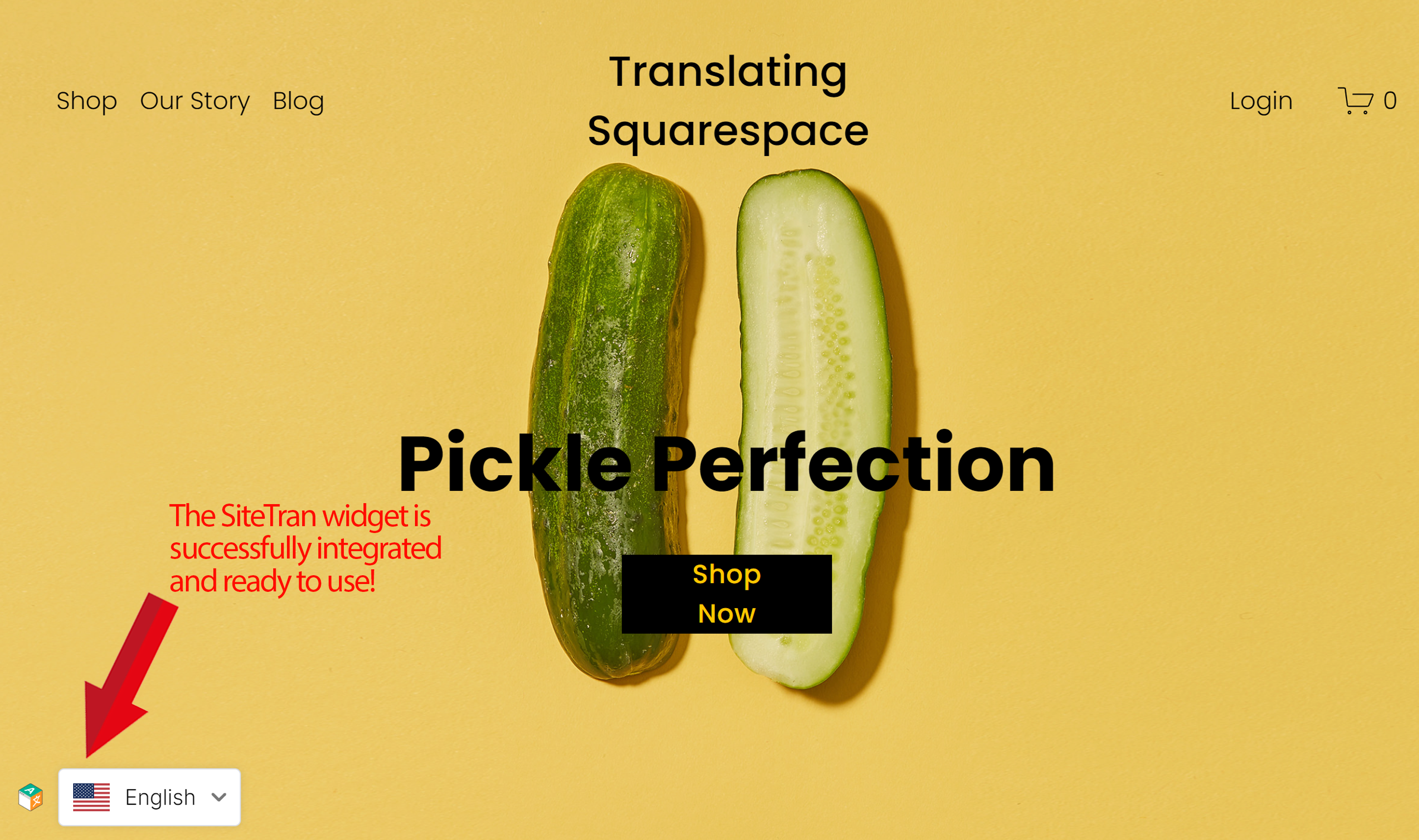
Congratulations! You have successfully integrated SiteTran with your Squarespace site.