










Invite a translator
Direct translator invites are per language. If someone is not a member of your team and should translate French and Spanish, invite them to each language.
Team members are automatically added as an Approved translator and Reviewer for every translation language on every site in that team. This also happens when you add another language or site. SiteTran does not send additional translator-invite emails for these automatic assignments.
Removing someone from the team also removes their translator and reviewer access from every site and language in that team. Their existing translations are preserved.
How to send an invite
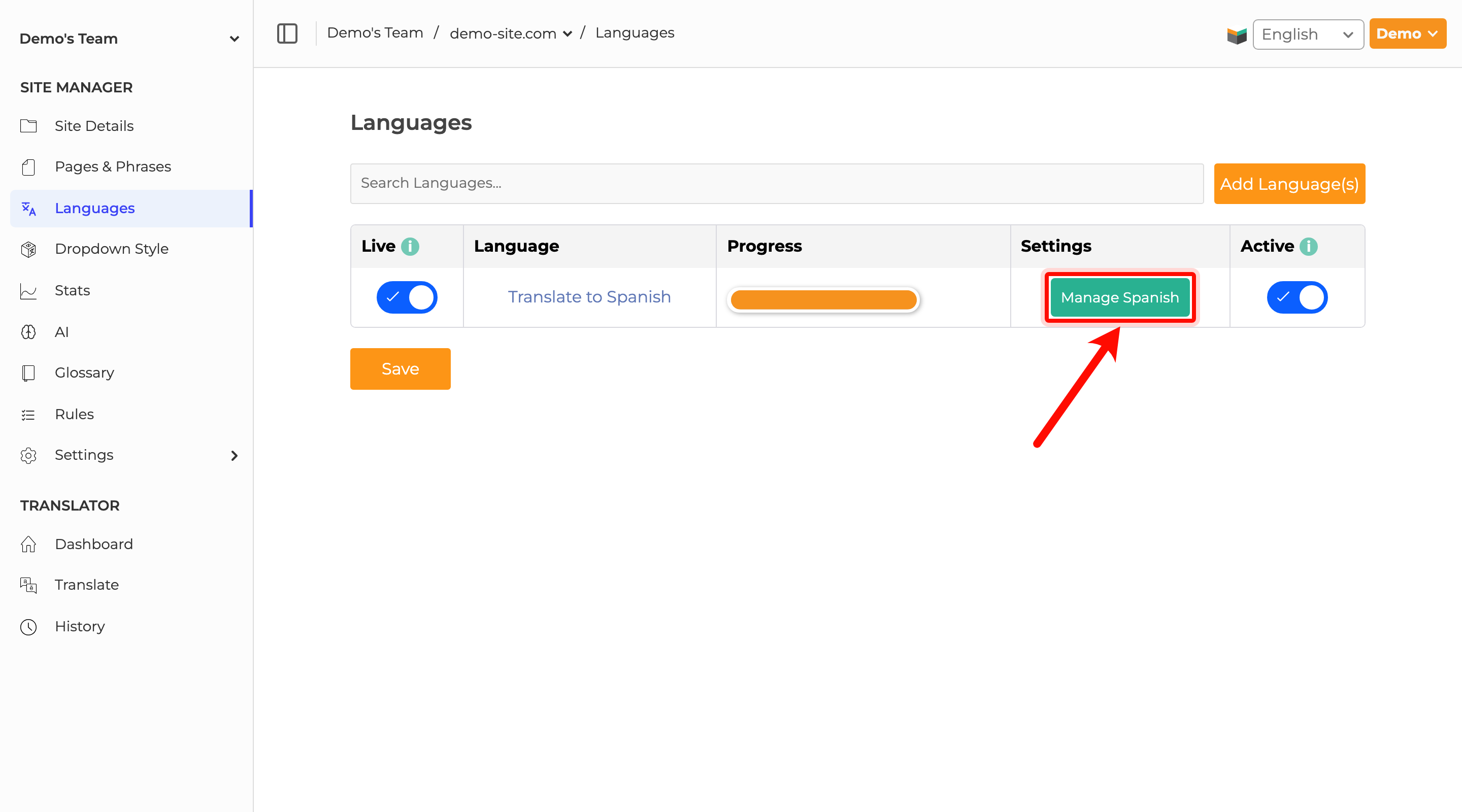
- Open your site in Site Manager, then open Languages.
- Click Manage for that language, for example Manage French.
- Under Invite a translator, enter their email address or select an existing translator by name from the suggestions.
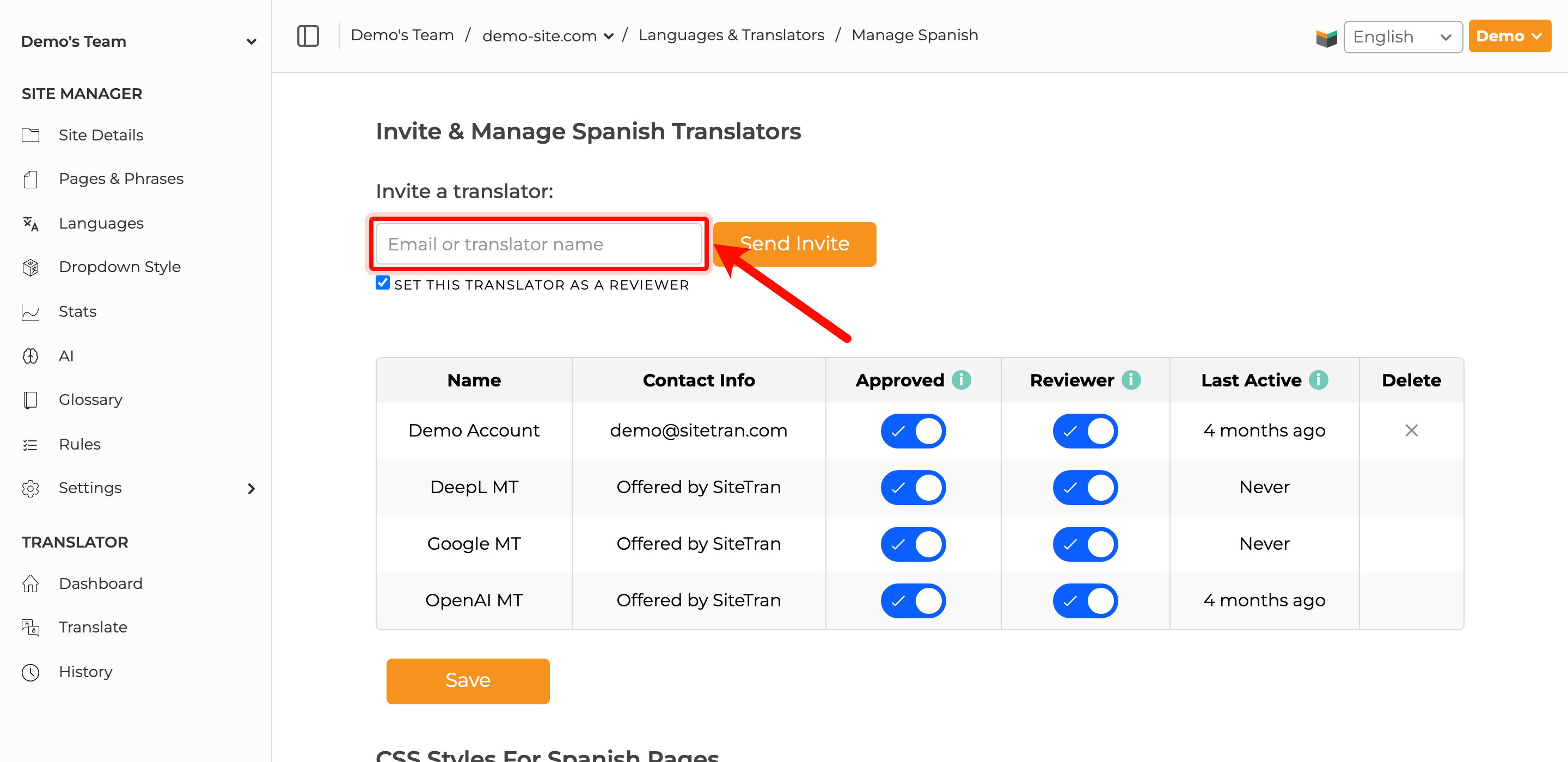
- Leave Set this translator as a reviewer checked if they should also be able to approve translations. Uncheck it if they should only translate.
- Click Send Invite.
The translator appears in the list right away. They also get an email with a link to join. If they do not have a SiteTran account yet, that email lets them create one and start translating.
Approved, Reviewer, and Last Active
The translator table on that same page is where you manage access. Team owners and members who can edit site settings can see translator email addresses in the Contact Info column and invite suggestions. Other team members see names, or the invited translator’s email in the Name column if they have not set up their name yet. Invite suggestions can also show an email while the translator has not accepted an invite for that language in the team.
- Approved means the translator is able to translate.
- Reviewer means the translator is able to approve translations. Approval is not the same as publishing to the live site.
- Last Active is the last time that translator translated or reviewed this language.
After you change Approved or Reviewer, click Save.
A translator can work in the translator interface as soon as they are Approved and they have joined from the invite. Their translations appear on the website when they are published.